Website Tagging Best Practices for 2026
 September 28, 2026


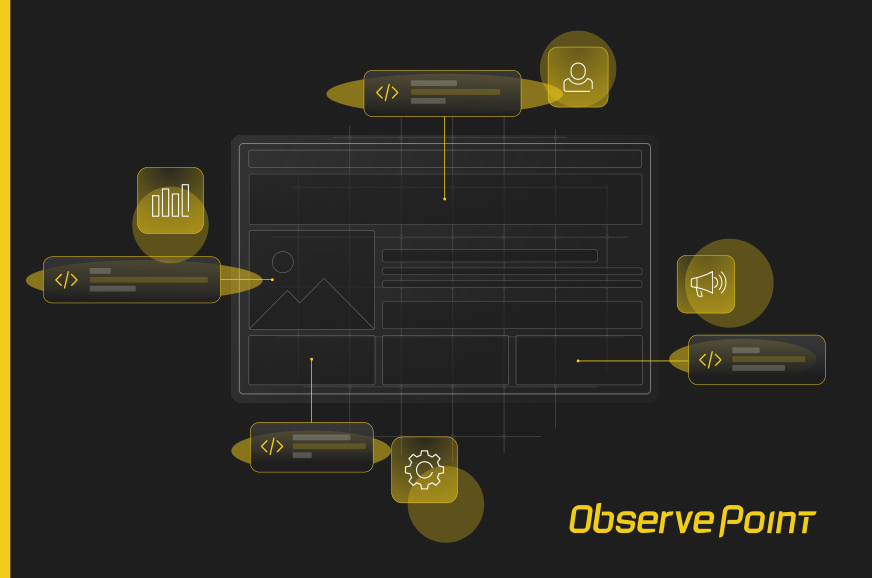

Every new tag you add for analytics, advertising, or personalization is one more thing that can break, slow down a page, or send data somewhere it shouldn’t. And tags pile up faster than anyone plans for.
As your implementation grows, these six practices keep your data accurate, your pages fast, and your tags in line with the consent choices visitors make.
1. Use a Tag Management System (TMS)
For an enterprise site, hardcoding tags page by page doesn’t scale. A tag management system, paired with a data layer, is the only practical way to deploy tags across a large website.
Even if you only run a few tags today, you’ll add more. A TMS gives you one place to manage them, so changes don’t depend on a developer release or on the one architect who knows where everything lives. It also lets analytics and marketing teams make approved changes themselves.
This applies to template-based sites too. You can deploy tags through a template, but every site eventually needs exceptions: a tag that fires only on certain sections, only for certain users, or only after a specific action. Templates can’t handle that kind of logic cleanly, and a TMS can.
Modern TMS containers load asynchronously by default, which keeps tags from blocking page rendering. If a tag depends on something else loading first, handle that with sequencing rules inside the TMS rather than falling back to synchronous loading.
Consider Server-Side Tagging
Server-side tagging moves some of the work off the visitor’s browser. Instead of each vendor’s tag sending data directly from the page, the browser sends one stream of data to a server you control, and that server forwards it to your vendors. Google Tag Manager’s server-side containers, Adobe Event Forwarding, and Meta’s Conversions API all work this way.
The benefits are real: fewer scripts on the page, better control over exactly which data each vendor receives, and more resilience against browser tracking restrictions. The tradeoff is visibility. Server-side requests don’t show up in the browser, so you need to validate both what the page sends to your server and what your server passes along.
Don’t Fire Tags Outside the TMS
Teams sometimes hardcode a tag because it feels faster than going through the TMS. For any site bigger than a personal blog, there’s rarely a good reason to do it. Hardcoded tags skip your approval process, your consent rules, and your documentation.
Server-side setups add a wrinkle, since some data now flows through a second system. The principle stays the same: every tag and every data stream should run through a system you manage and can audit.
If you suspect tags are being deployed outside your TMS, use a tool like ObservePoint to monitor which tags are present in production. The Tag Initiators feature shows which tags are hardcoded and which fire through your TMS. For a look at your TMS options, see our comparison of the best tag management systems for 2026.
2. Implement a Data Layer
Unless your site is small and staying that way, you need a data layer. The more complex your site gets, the more it matters.
A data layer is a JavaScript object that holds the key details about the current page and visitor, like page type, product ID, or login status. Your tags read from it instead of scraping values off the page. Google Tag Manager uses the dataLayer array, and Adobe offers the Adobe Client Data Layer. Many TMS platforms create a data layer object for you.
The payoff is independence. If your tags are configured correctly, you can change what’s in the data layer without editing every tag that uses it, and a site redesign won’t break your tracking.
Verify it regularly. A data layer that’s missing a productID on product pages means every tag relying on it is sending incomplete data. With scheduled ObservePoint Audits, you can check that the data layer is present on every page and that its variables are populated and formatted correctly.
3. Use Clear and Consistent Naming Conventions
You won’t control every variable name. Out-of-the-box variables in your analytics platform come predefined, and that’s fine.
Where you do have control, consistency is everything. If three teams pass product categories, all three need the same list. The same goes for marketing channels: agree on the definitions and the names. Some companies use number-based codes for these values to avoid spelling drift entirely.
The Data Layer
You have full control over data layer names, so keep them intuitive. A variable called pageCategory explains itself. Check what your TMS recognizes by default before inventing your own names.
Then standardize the values. Without a company-wide standard, you’ll end up with “signUp,” “signup,” and “sign-up” on different pages, and your reports will treat them as three separate things.
Learn more about data layer naming conventions.
Naming Pages
If you’re on Adobe Analytics, give each page a unique, stable page name. Don’t build the name from the navigation path a visitor took, because Adobe has other variables that capture how someone reached the page. And don’t use the page’s title tag as the page name; titles change for SEO reasons, and every change breaks your historical reporting.
GA4 doesn’t have a page name variable. It reports on page title and page location, so the same caution about changing titles applies. If you need a stable identifier in GA4, pass one as a custom parameter from your data layer.
4. Track Page Views and Events Correctly
Every analytics platform separates page views from interactions like clicks, scrolls, form submissions, and video plays. How it does that depends on the platform.
In GA4, everything is an event, including page views. The page_view event fires automatically when the Google tag loads, and interactions get their own events, either through enhanced measurement or events you define. In Adobe, the Web SDK sends page views and interactions as different event types, while older AppMeasurement implementations use separate calls for each.
The common mistake is the same everywhere: sending a page view when you should be sending an interaction event. Fire a page view on a button click and your page view counts inflate, your engagement metrics skew, and any analysis built on traffic numbers goes wrong. If your contract bills by server call, as many Adobe contracts do, the extra calls cost money too. And once bad data is collected, you can’t fix it retroactively.
There are legitimate reasons to send more than one page view per page load. Single-page applications change content without a full page reload, so each new view needs its own page view. Infinite scroll pages that load substantial new content can work the same way. The rule is that a page view should represent a new page from the visitor’s perspective.
To confirm your events fire correctly, use ObservePoint’s Action Set Library with a Journey to simulate user actions on your site and check that the right tags and events fire.
5. Make Every Tag Respect Consent
Tags that fire before a visitor consents, or after they reject tracking, are one of the most common privacy failures on the web. They’re also one of the easiest for regulators and plaintiffs’ attorneys to spot.
Your consent management platform (CMP) collects the visitor’s choice, and your Tag Management System has to enforce it. Most TMS platforms support this directly: Google Tag Manager has built-in consent settings for each tag, and Adobe’s Web SDK can hold data collection until consent is given. Map each tag to a consent category, and make sure no tag fires on page load before the CMP has read and loaded the visitor’s choice.
If you run Google advertising or analytics tags for visitors in the EEA or UK, you also need Google Consent Mode v2. Since March 2024, Google has required it for re-marketing and ad personalization features in those regions. It passes the visitor’s consent choices to Google’s tags so they adjust their behavior.
Also account for signals beyond your banner. Several U.S. state privacy laws require honoring Global Privacy Control (GPC), a browser setting that tells sites the visitor opts out of the sale or sharing of their data.
Then test it. Run audits of your site in each consent state (no choice made, accept all, reject all, and GPC enabled) and compare which tags and cookies appear in each. If an advertising pixel shows up after a visitor clicks “Reject All,” your consent setup isn’t working, no matter what the banner says. ObservePoint can run these audits on a schedule so a new tag or CMP change doesn’t undo your configuration without anyone noticing.
6. Create a Plan for Sunsetting Tags
Deployment gets plenty of process. Retirement usually gets none. Tags stay on the site after a vendor contract ends, a campaign wraps, or a team switches tools, because nobody’s job is to remove them.
Old tags aren’t harmless clutter. A pixel for a vendor you no longer work with may still be sending visitor data to that vendor, under no contract and possibly outside your consent rules if it was deployed before your CMP was set up. Session replay tools, advertising pixels, and video tracking have all been the subject of privacy lawsuits under laws like the California Invasion of Privacy Act (CIPA) and the Video Privacy Protection Act (VPPA). A tag you forgot about is still your liability.
Old tags also slow pages down and add JavaScript that can conflict with newer tags.
Build retirement into your tag lifecycle. When you approve a new tag, record who owns it, and when it should be reviewed. Then review your full tag inventory on a regular schedule. If you audit your website today, you may find technologies you didn’t know were still there. A site-wide ObservePoint Audit shows every tag and where it fires, and the Cookie & Tag Database helps identify tags you don’t recognize.
Get Your Website Tagging Back on Track
Tagging that’s grown out of control is common, and fixing it starts with knowing what’s actually on your site. Regular tag audits catch broken tags, missing data, consent failures, and forgotten vendors before they turn into bad reports or legal exposure.
Building a governance practice takes ongoing effort. Automated auditing with ObservePoint makes that effort manageable, so you can keep adding the tags your business needs without losing track of what they’re doing.